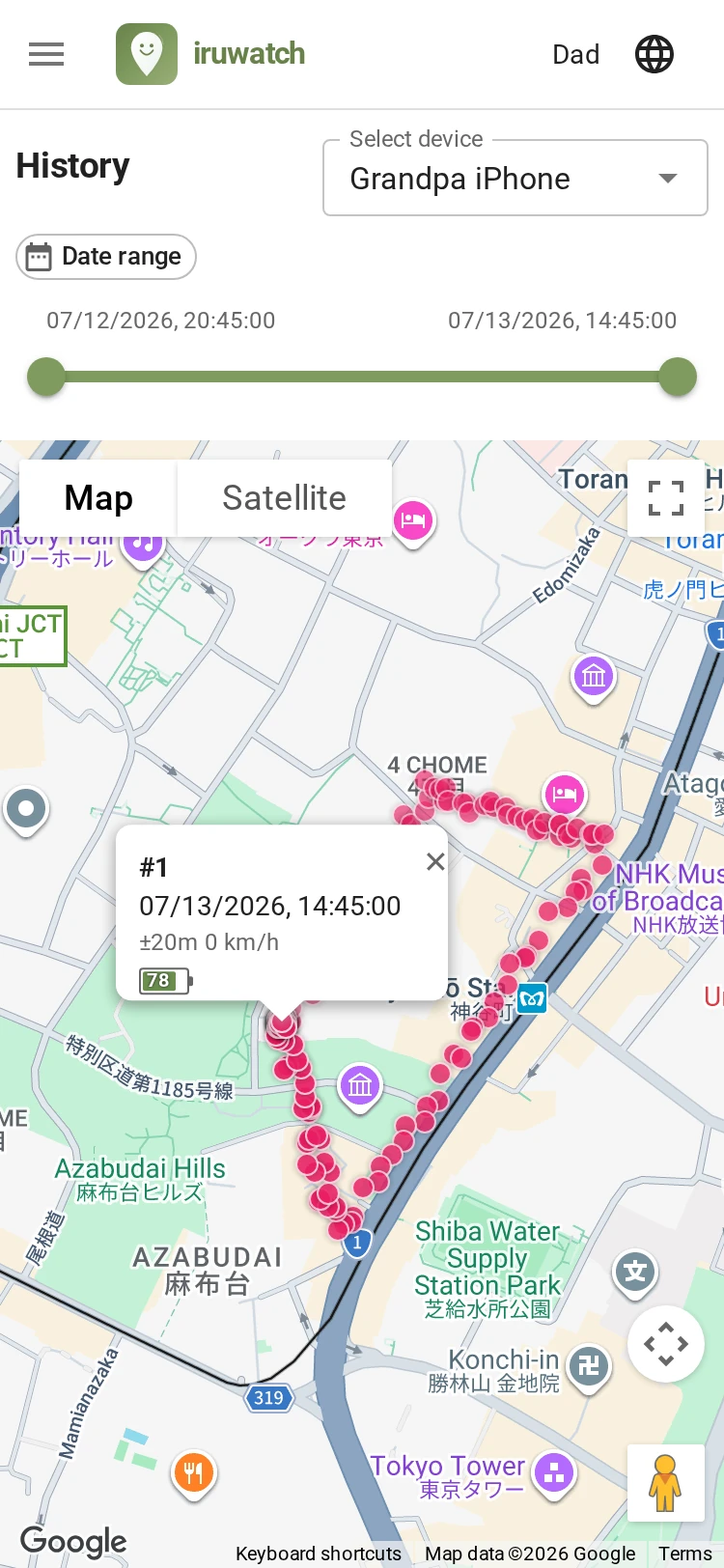
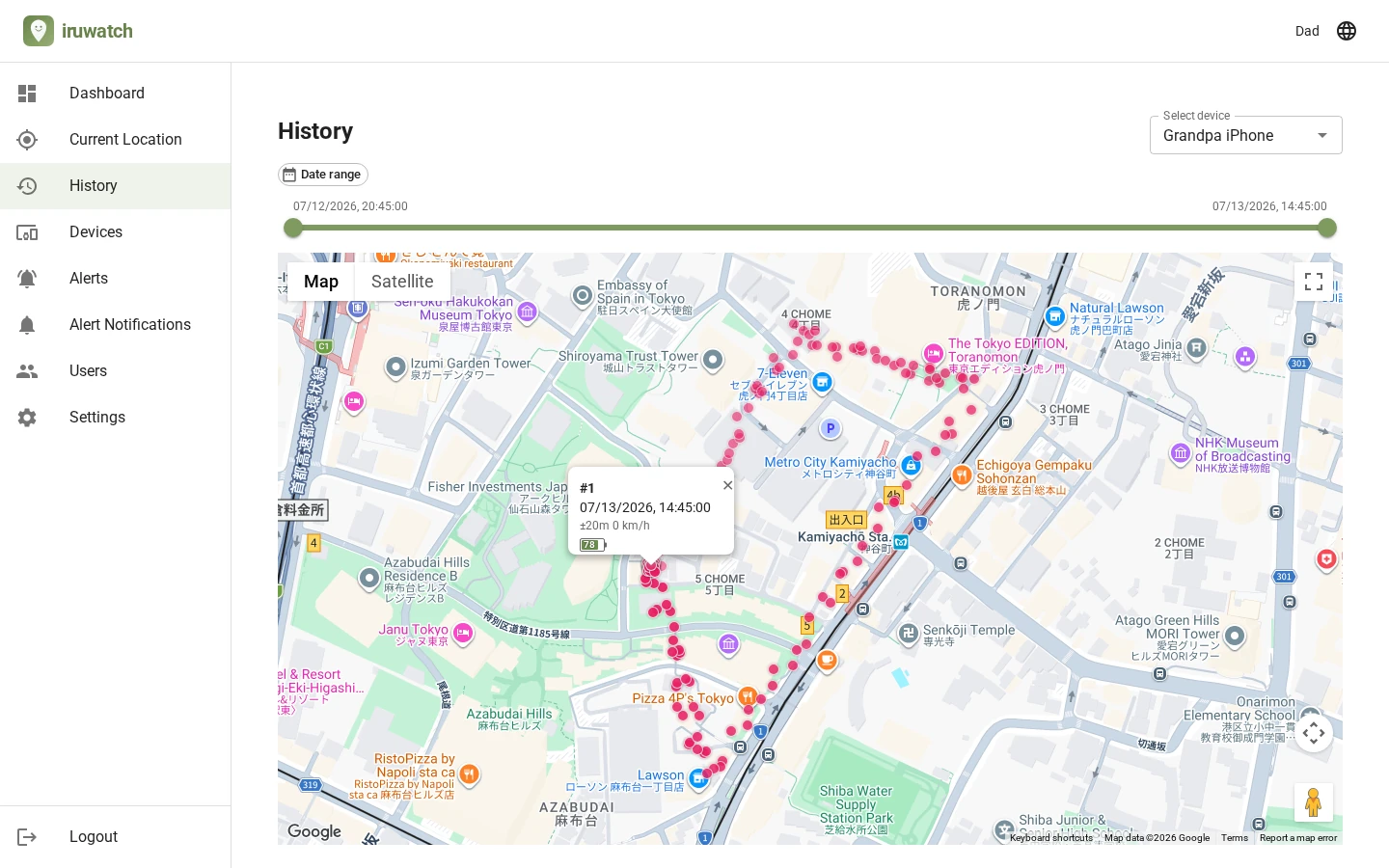
Tap "Show map" and the positions for the period you specify are connected with a line and drawn on the map as a movement route (trail). Narrow the time window with the time slider to trace when and where they were. For looking back over history, this map view — where the route is clear at a glance — is the way to go.
You can also review history in a list that loads no map. Recorded points are laid out in a table in chronological order, and it doesn't consume any map loads. The movement route isn't drawn as a line, though, so when you want to grasp the whole route, the map view is easier to read.
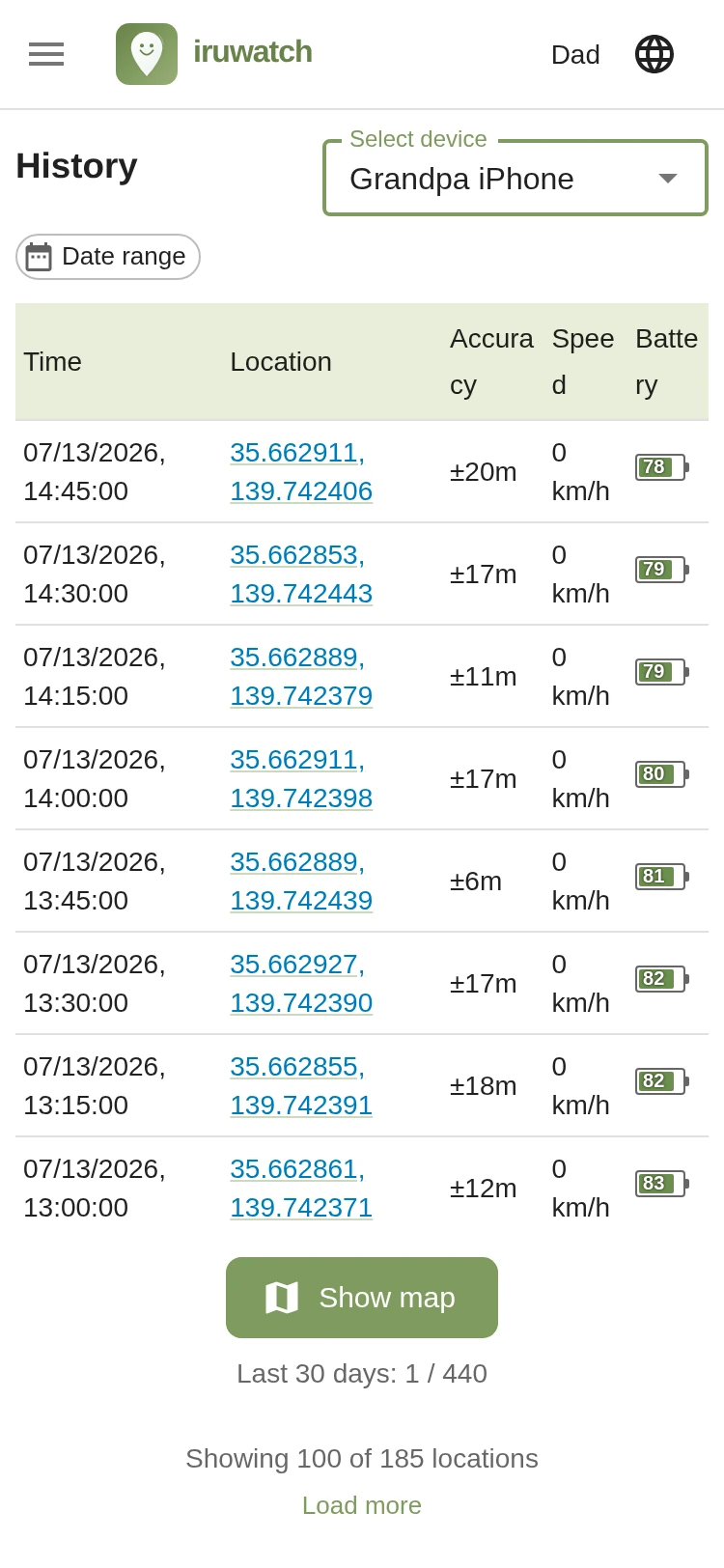
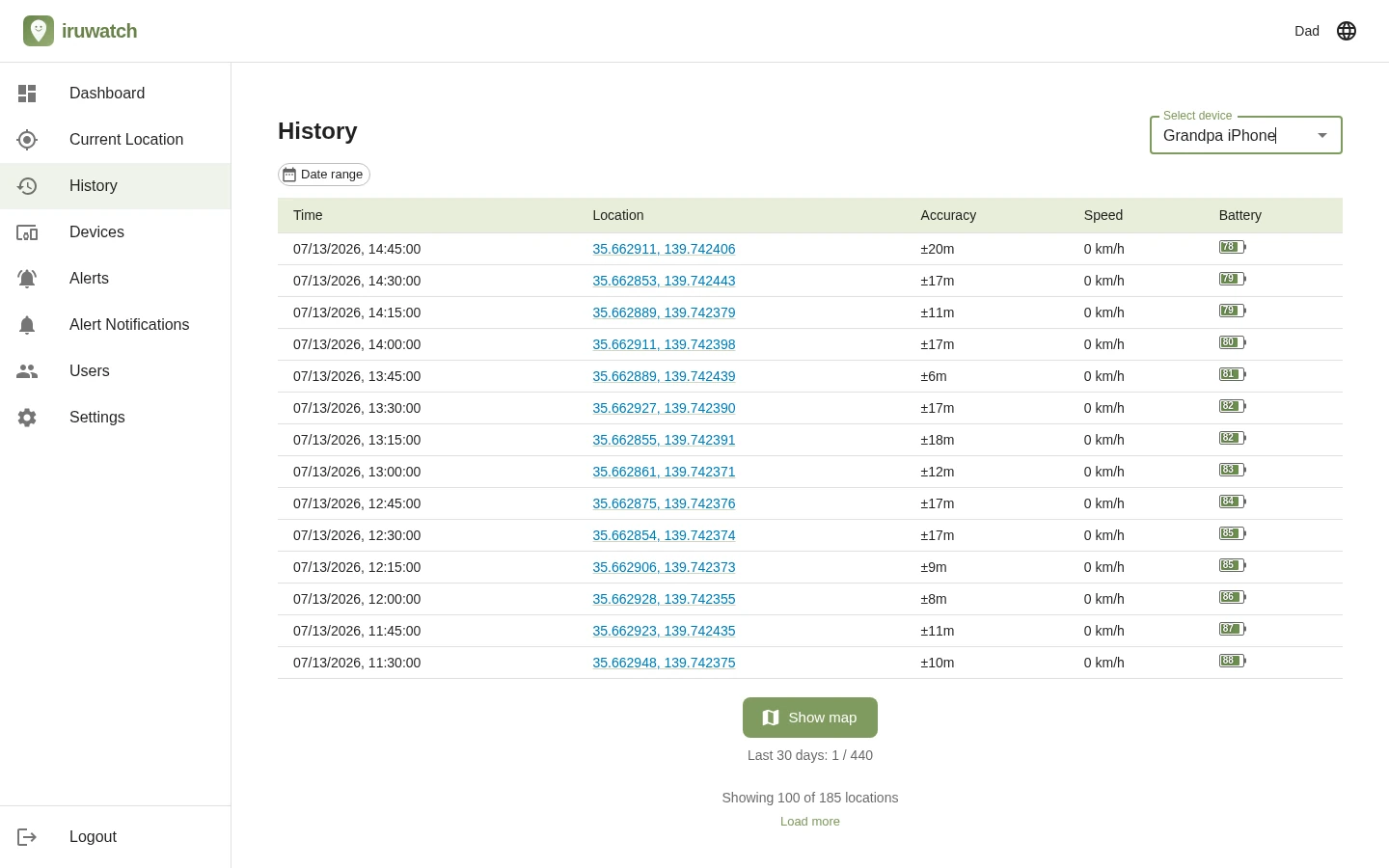
You can check the same history in either the map-free list view or the map view. Here's where to find each item in each view.
| Item | List view (no map) | Map view |
|---|---|---|
| How the route is shown | Chronological list (not drawn as a line) | Movement route drawn as a line on the map |
| Checking the location | Opens Google Maps (web / browser) on tap | Shown as a marker on the map |
| Map display limit | No limit | Map loads capped by a rolling 30-day total and a daily limit (increases with plan) |
| Choosing the period | Select by date range | Filter by date range plus a time slider |
| Recorded time | Shown in the list | Tap the marker to view |
| Accuracy (±m) | Shown in the list | Tap the marker to view |
| Speed (km/h) | Shown in the list | Tap the marker to view |
| Altitude | — | Tap the marker to view |
| Battery level | Shown in the list | Tap the marker to view |
The location history retention period varies by plan (for Family Watch plans).
| Plan | Retention period |
|---|---|
| Free / Pair | 31 days |
| Family | 90 days |
| Premium | 365 days |